.png)
Create or obtain an Api Access on the portal
The first step to use the CloudCockpit API is to create an Api Access on your portal. The creation of an Api Access is only enabled for CSPs at the moment, so if you are a Reseller or you don't have the specified permission ask a CSP to provide you with the Api Access for your user context.
Obtain an Access token from Microsoft
After the creation of the API Access you must have the corresponding client ID and client Secret, these properties are required to request an Access Token.
To request access you need to perform a request to the url https://login.microsoftonline.com/4e806121-ff28-4286-ab4e-3be0a08f9ce0/oauth2/v2.0/token with the client credentials provided by the API Access.
Examples:
curl -X POST https://login.microsoftonline.com/4e806121-ff28-4286-ab4e-3be0a08f9ce0/oauth2/v2.0/token
-H "Content-Type: application/x-www-form-urlencoded"
-d "client_id={ApiAccess_ClientId}&client_secret={ApiAccess_ClientSecret}&scope=api://b92a36a4-feb8-4f47-a69c-29a180aa6d0a/.default&grant_type=client_credentials"
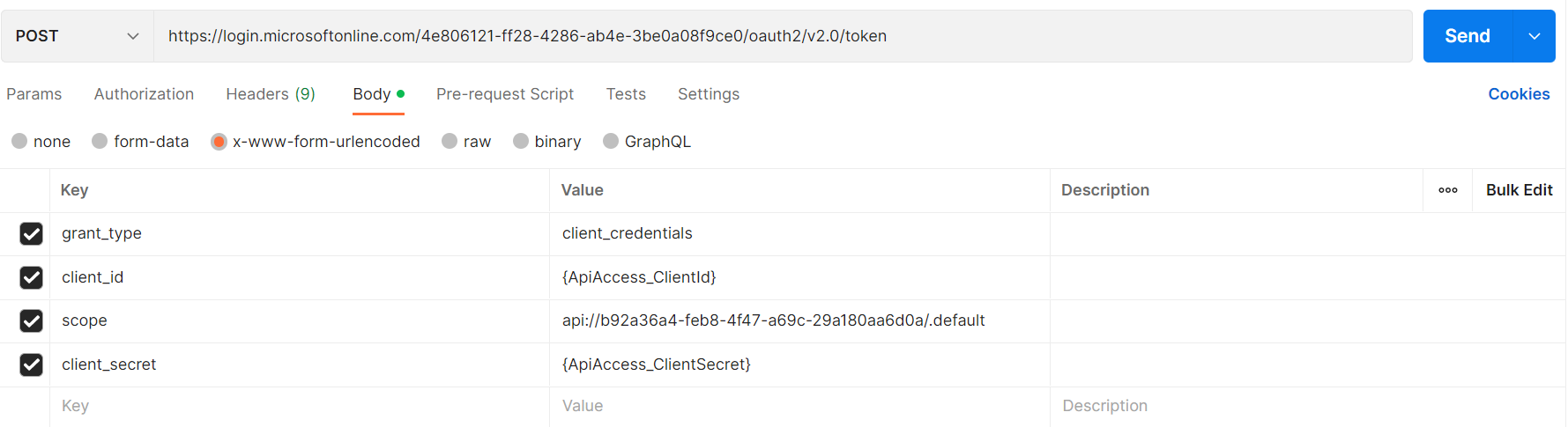
Response and Bearer Token
The response of this request will include the property access_token, and you need to copy its value and use it as the value of the Bearer token (-H "Authorization: Bearer $ACCESS_TOKEN") for each request to our API.
{
    "token_type": "Bearer",
    "expires_in": 3599,
    "ext_expires_in": 3599,
    "access_token": "eyJ0eXAiOi...."
}